How to change graphical settings
Explains that after the launcher was removed, graphics and language options are changed in-game by pressing Escape and opening Settings. Notes that a restart is required for the changes to apply, and that Windowed Mode is set from the same menu.
Since the new update where the game launcher was removed, graphic settings are now adjusted directly inside the game settings.
You just need to press the Escape key and then click the Settings button. Once you’ve set your language and graphics preferences, you’ll need to restart the game. As an additional note, you can switch the game to Windowed Mode from this same menu.
Screenshots
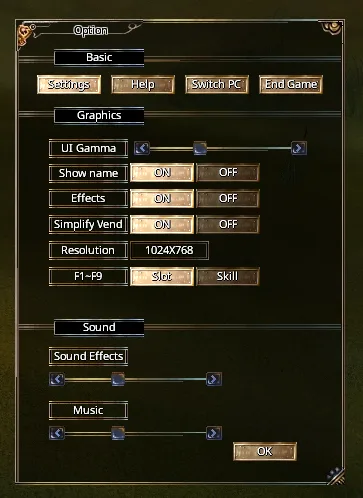
What this shows
Options
Basic
| Settings | Help | Switch PC | End Game |
|---|
Graphics | UI Gamma | [slider] | | Show name | ON | OFF | | Effects | ON | OFF | | Simplify Vend | ON | OFF | | Resolution | 1024X768 | | F1~F9 | Slot | Skill |
Sound | Sound Effects | [slider] | | Music | [slider] |
OK
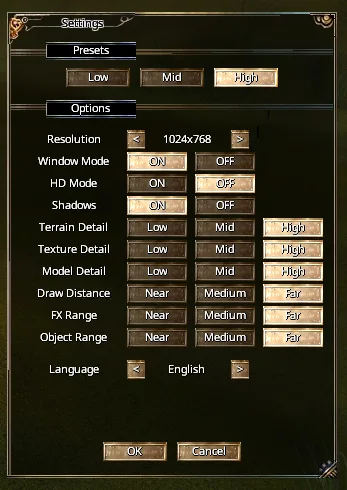
What this shows
Settings
Presets Low | Mid | High
Options
| Setting | Option 1 | Option 2 | Option 3 |
|---|---|---|---|
| Resolution | 1024x768 | ||
| Window Mode | ON | OFF | |
| HD Mode | ON | OFF | |
| Shadows | ON | OFF | |
| Terrain Detail | Low | Mid | High |
| Texture Detail | Low | Mid | High |
| Model Detail | Low | Mid | High |
| Draw Distance | Near | Medium | Far |
| FX Range | Near | Medium | Far |
| Object Range | Near | Medium | Far |
| Language | English |
OK | Cancel